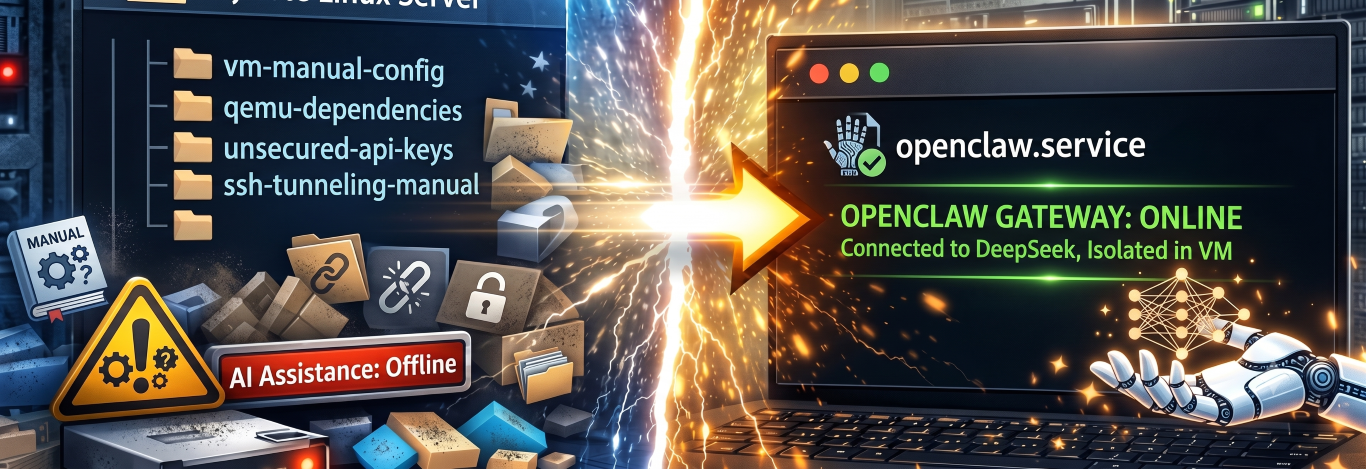
As you have probably seen everywhere, OpenClaw is a security nightmare. With the setup you see here I got the agent to send me API keys and telegram tokens with no issues whatsoever - it would just send them to me. When I pointed that out, it would say that it would never do it again and then I asked for it again and it would do it again LOL. Anyway, it goes without saying that you should only play with this if you know what your are doing. This is not quite there yet but the potetial is definitely here already!! I will talk about some basic security actions I am doing on upcoming posts. Great time to be alive!
These instructions were completely generated by an AI assistant based on the steps I performed to set up OpenClaw on a remote Linux server (even the images were created by the assistant). The content is hopefully(!) accurate and reflects the actual process I took minus the missteps and troubleshooting I had to do along the way, but may contain some formatting inconsistencies or minor errors. I use this guide as a reference for myself. Please let me know if you have any questions or need clarification on any of the steps.
Many developers work with Linux servers that are accessible only through SSH — no GUI, no local display, just a terminal. Most popular AI coding assistants assume you're running on a local machine with a graphical interface. But what if your development environment is already remote? What if your "computer" is simply a terminal session on a server you cannot physically access?
This guide documents how to solve that problem by running an AI coding assistant inside a virtual machine on a remote Linux host, configured as a systemd service so it persists after the SSH session ends.
There are several reasons to run the AI assistant inside a VM rather than directly on the host:
The architecture is straightforward: Linux host → KVM/QEMU virtual machine → Ubuntu Server → OpenClaw AI assistant.

The host machine needs to run QEMU with KVM acceleration, along with libvirt for VM management. Execute the following commands on the host:
sudo apt update
sudo apt install -y qemu-kvm libvirt-daemon-system virt-manager bridge-utils
These packages provide:
virsh)Verify that KVM acceleration is available:
kvm-ok
A successful output indicates the system can use hardware virtualization:
INFO: /dev/kvm exists
KVM acceleration can be used
Add your user to the libvirt group to avoid prefixing commands with sudo:
sudo usermod -aG libvirt $(whoami)
Log out and back in for the group change to take effect.
Obtain the Ubuntu 24.04 Server ISO image:
cd /path/to/downloads
wget https://releases.ubuntu.com/24.04/ubuntu-24.04-live-server-amd64.iso
The file is approximately 3.1GB.
Create a VM with the following specifications:
sudo virt-install \
  --name openclaw-vm \
  --ram 4096 \
  --vcpus 2 \
  --disk path=/var/lib/libvirt/images/openclaw-vm.qcow2,size=40 \
  --os-type linux \
  --os-variant ubuntu24.04 \
  --network network=default \
  --graphics none \
  --console pty,target_type=serial \
  --location /path/to/downloads/ubuntu-24.04-live-server-amd64.iso \
  --extra-args='console=ttyS0,115200n8 serial'
Parameter explanations:
--name: The VM identifier used by virsh--ram: Memory allocation in MB--vcpus: Virtual CPU count--disk: Location and size of the virtual hard drive--os-variant: Optimization hints for the selected OS--network network=default: NAT-based networking via libvirt--graphics none: Headless operation (console only)--location: Boot media sourceThe Ubuntu installer will launch in the terminal. Complete the installation with the following selections:
demo_user)After the VM restarts, log in with the account created during installation. Determine the VM's IP address:
ip a
Note the IP address assigned to the primary network interface (typically 192.168.122.x on the default libvirt NAT network).
From the host machine, verify SSH connectivity:
ssh demo_user@192.168.122.x
If connection fails, enable password authentication in the VM:
sudo sed -i 's/^#PasswordAuthentication.*/PasswordAuthentication yes/' /etc/ssh/sshd_config
sudo systemctl restart sshd
The following steps execute inside the VM via SSH.
OpenClaw requires Node.js 22. Install it:
curl -fsSL https://deb.nodesource.com/setup_22.x | sudo -E bash -
sudo apt install -y nodejs

node --version
sudo npm install -g pnpm
Clone and configure OpenClaw:
cd ~
git clone https://github.com/openclaw/openclaw.git
cd openclaw
pnpm install
This step takes several minutes.
OpenClaw connects to LLMs via providers. This guide uses DeepSeek.
mkdir -p ~/.openclaw
~/.openclaw/openclaw.json:{
gateway: {
mode: "local",
port: 18789,
bind: "loopback"
},
models: {
providers: {
"deepseek": {
baseUrl: "https://api.deepseek.com/v1",
apiKey: "${DEEPSEEK_API_KEY}",
api: "openai-completions",
models: [
{
id: "deepseek-chat",
name: "DeepSeek-Chat",
reasoning: false,
input: ["text"],
contextWindow: 200000,
maxTokens: 8192
}
]
}
}
}
}
Important: The gateway.mode: "local" setting is required. Without it, OpenClaw will refuse to start for security reasons (you would need the --allow-unconfigured flag which is less secure).
Create a .env file or copy the template that is included on the openclaw install. Add the following lines:
DEEPSEEK_API_KEY=ENTER_API_KEY_HERE
OPENCLAW_GATEWAY_TOKEN=$(openssl rand -hex 32)
Use virsh to manage your VMs from the host. Here are the essential commands:
sudo virsh list --all
This shows all VMs (running and stopped).
sudo virsh start openclaw-vm
Graceful shutdown:
sudo virsh shutdown openclaw-vm
Force stop (if graceful doesn't work):
sudo virsh destroy openclaw-vm
sudo virsh console openclaw-vm
Press Ctrl+] to exit the console.
Tip: After starting the VM, wait a few seconds for it to boot before attempting to connect via SSH.
Find the IP address to SSH into:
sudo virsh domifaddr openclaw-vm
This shows the IP address (typically in the 192.168.122.x range on the default libvirt NAT network).
Get detailed VM info (state, UUID, memory, vCPUs):
sudo virsh dominfo openclaw-vm
List all VMs (running and stopped):
sudo virsh list --all
To keep OpenClaw running after the SSH session closes, create a systemd service. This guide assumes you have already configured your .env file with the DeepSeek API key and gateway token.
Create the service file:
sudo nano /etc/systemd/system/openclaw.service
Add the following content:
[Unit]
Description=OpenClaw AI Assistant Gateway
After=network.target

[Service]
Type=simple
User=demo_user
WorkingDirectory=/home/demo_user
ExecStart=/usr/bin/npx openclaw gateway
Restart=always
RestartSec=10

[Install]
WantedBy=multi-user.target
Enable and start the service:
sudo systemctl daemon-reload
sudo systemctl enable openclaw
sudo systemctl start openclaw
Verify the service is running:
sudo systemctl status openclaw
The output should indicate active (running).
To confirm persistence, close the SSH session, wait, reconnect, and check the service status again. It will remain running.
The OpenClaw gateway listens on ws://127.0.0.1:18789. Two options exist for connecting.
From the local machine, create an SSH tunnel:
ssh -L 18789:127.0.0.1:18789 demo_user@192.168.122.x
In a separate terminal, launch the TUI:
cd ~/openclaw
npx openclaw tui
The TUI connects through the tunnel to the remote gateway.
If already SSH'd into the VM:
export DEEPSEEK_API_KEY=your-key-here
cd ~/openclaw
npx openclaw tui
This connects directly to the local gateway.
A persistent AI assistant on a remote server enables several practical applications:
Future posts will explore these workflows in depth, including multi-model support, advanced configuration, and integration with development tools.
This guide covered:
The result is a personal AI coding assistant running on a remote server, available whenever needed, with full control over the infrastructure.