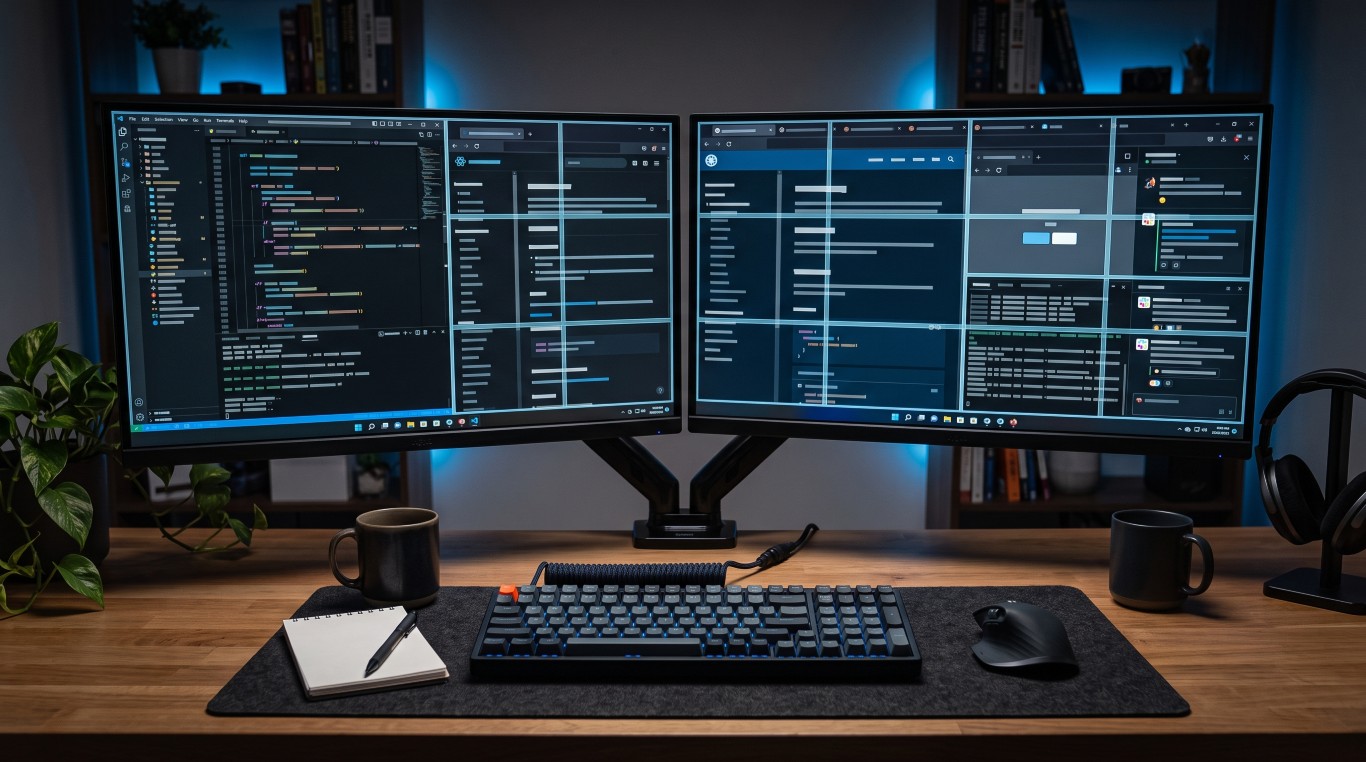
A while ago I wrote about How I Built a Faster Workflow on Windows 11. Near the end of that article, I mentioned that scrolling was probably the biggest remaining source of friction in my workflow. Despite spending most of my day on the keyboard, I still found myself constantly reaching for the mouse wheel.
At first, I assumed there was already a solution for this. It seemed like the sort of problem someone must have solved years ago. After looking around for a while, however, I couldn't find anything that worked the way I wanted. So, I ended up building my own.
Over the years I've gradually moved more and more of my workflow onto the keyboard. Between typing, launching applications, switching virtual desktops, navigating Windows, and using various shortcuts, there are entire stretches of the day where I barely touch the mouse. Scrolling was the exception and it was driving me nuts!
All the time no matter whether I was reading documentation, reviewing logs, browsing websites, or scrolling through chat conversations, I kept having to take a hand off the keyboard, grab the mouse, use the wheel, and then move back again (or what you have to do to achieve the same on the trackpad). It's a tiny interruption, but it's one that happens so often that I eventually started looking for a better way.
This is very similar to why I built DesktopTie. That project exists because I was annoyed by a particular behavior of Windows virtual desktops. DesktopScroll exists because scrolling never really fit into the keyboard-first workflow I was trying to build.
DesktopScroll is a keyboard-driven scrolling utility for Windows. It lets you select a location anywhere on any of the attached screens and send scrolling commands to that location without using the mouse wheel.
When activated, DesktopScroll displays a labeled grid across your monitors. You type the letters shown in the area you want to target and then you can scroll using configurable keyboard shortcuts. By default, the application uses W, A, S, and D, although the controls can be changed in the settings. Just to make it clear, you can scroll up and down and left and right whatever the area you are in allows for.
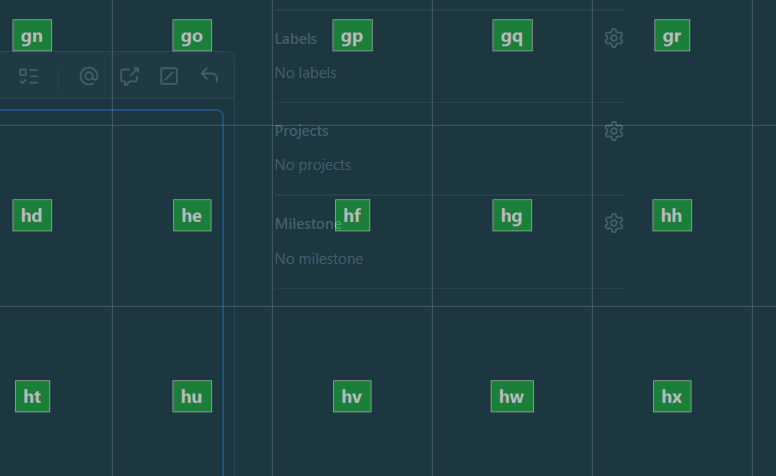
This is the grid that shows when you go to scroll mode with win-enter (configurable). You type the character combination and that is the area you will scroll.
I have no idea how many people will find this useful. Like DesktopTie, it solves a very specific problem that mostly comes from the way I work. But one thing I've learned over the past few years is that software doesn't need a massive audience to be worth building. If something removes a daily annoyance, that's often reason enough - if I feel that annoyance, even more worth it to build and now with the age of AI, that becomes easy and fast to do.
If that sounds useful to you, the project is available on GitHub:
DesktopScroll: GitHub Repository
You might also be interested in the following related articles: