How I Built a Faster Workflow on Windows 11
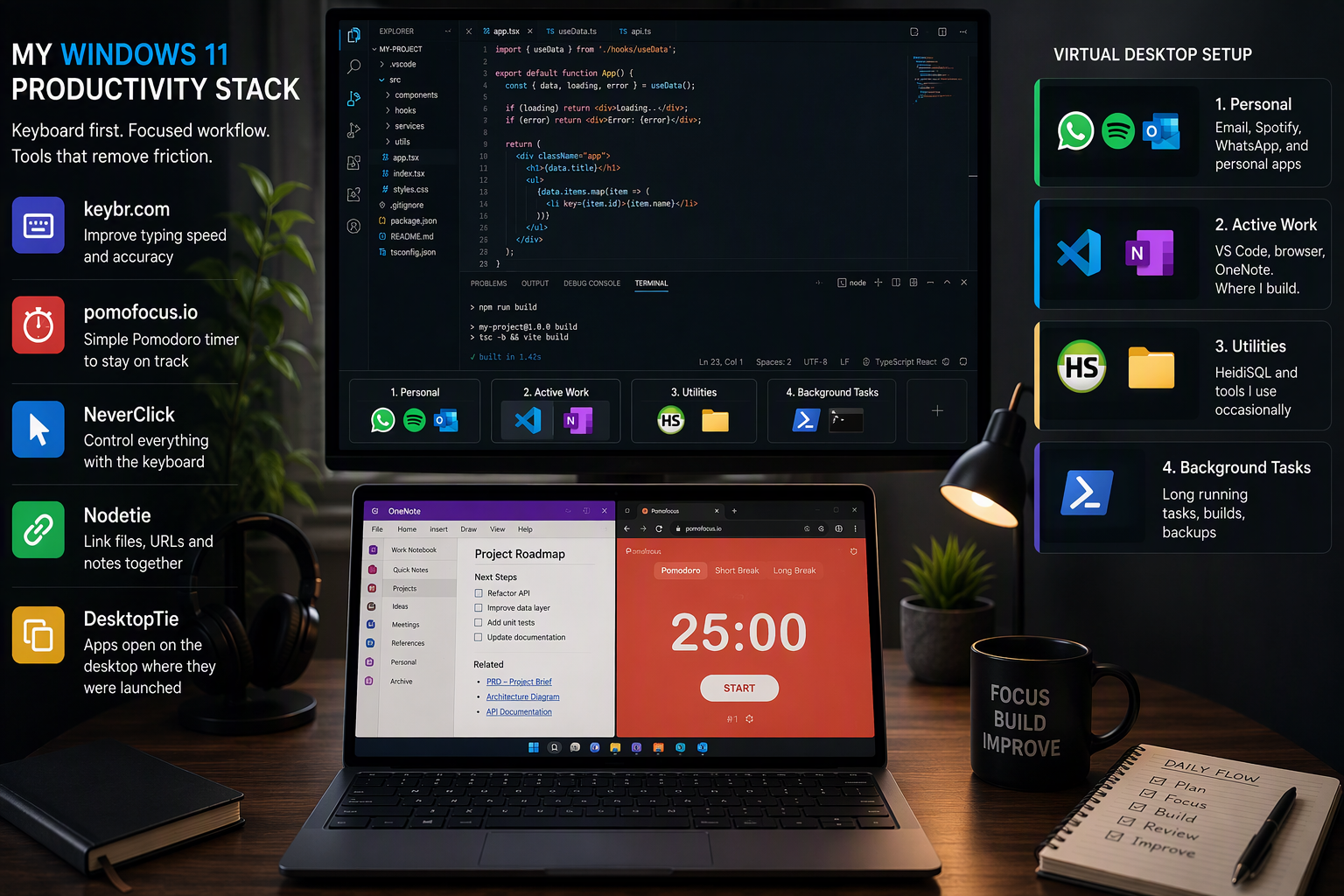
Computer interaction speed in the age of AI or just the way that I work that makes perfect sense to me and who knows something I do may be valuable to you!
Computer interaction speed in the age of AI or just the way that I work that makes perfect sense to me and who knows something I do may be valuable to you!
UPDATE 31 Aug 2026.
Since I wrote this original article, I have:
END UPDATE 31 Aug 2026
I spend around 12 hours a day in front of a computer, so even small inefficiencies add up quickly. My main machine is a Surface Book 2 with 16 GB of RAM and a 512 GB SSD. It's not the newest hardware, which means I have to be deliberate about how I work and how I organize my environment.
Over the years, I've gradually built a workflow on Windows 11 that helps me stay productive, focused, and surprisingly fast without constantly upgrading hardware. Most of the changes are small on their own, but together they make a significant difference.
The biggest productivity improvement I ever made was learning to rely on the keyboard.
Today, I'd estimate that about 90% of my computer input happens through the keyboard. This wasn't something that happened overnight. I've spent many hours practicing and I still continue to do so.
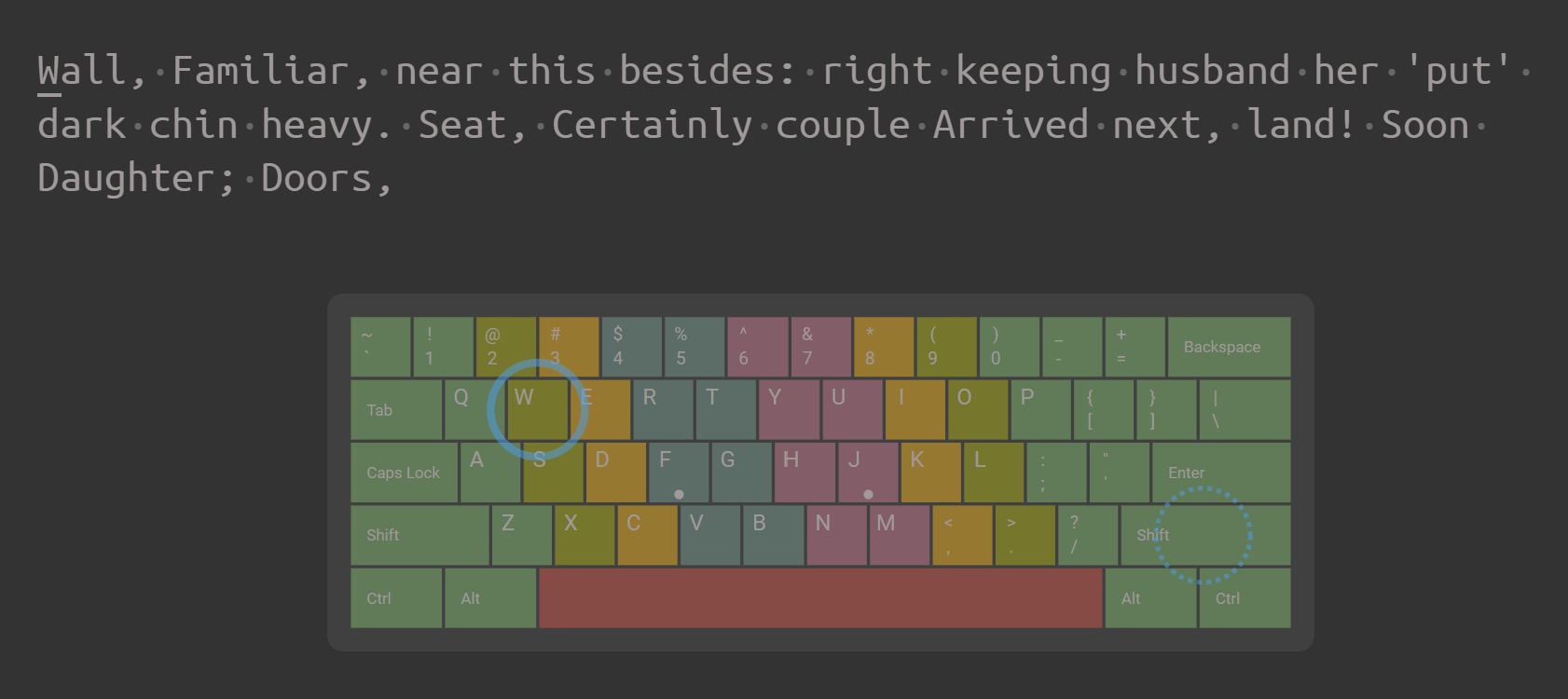
One of the tools I use for this is keybr.com, which helps me improve typing speed and accuracy through regular practice. I also take typing tests from time to time to measure progress. Those tests can be frustrating because improvements are often difficult to notice from week to week. However, when I look at the longer-term trend over several months, the progress becomes obvious. I use this to test my typing speed.
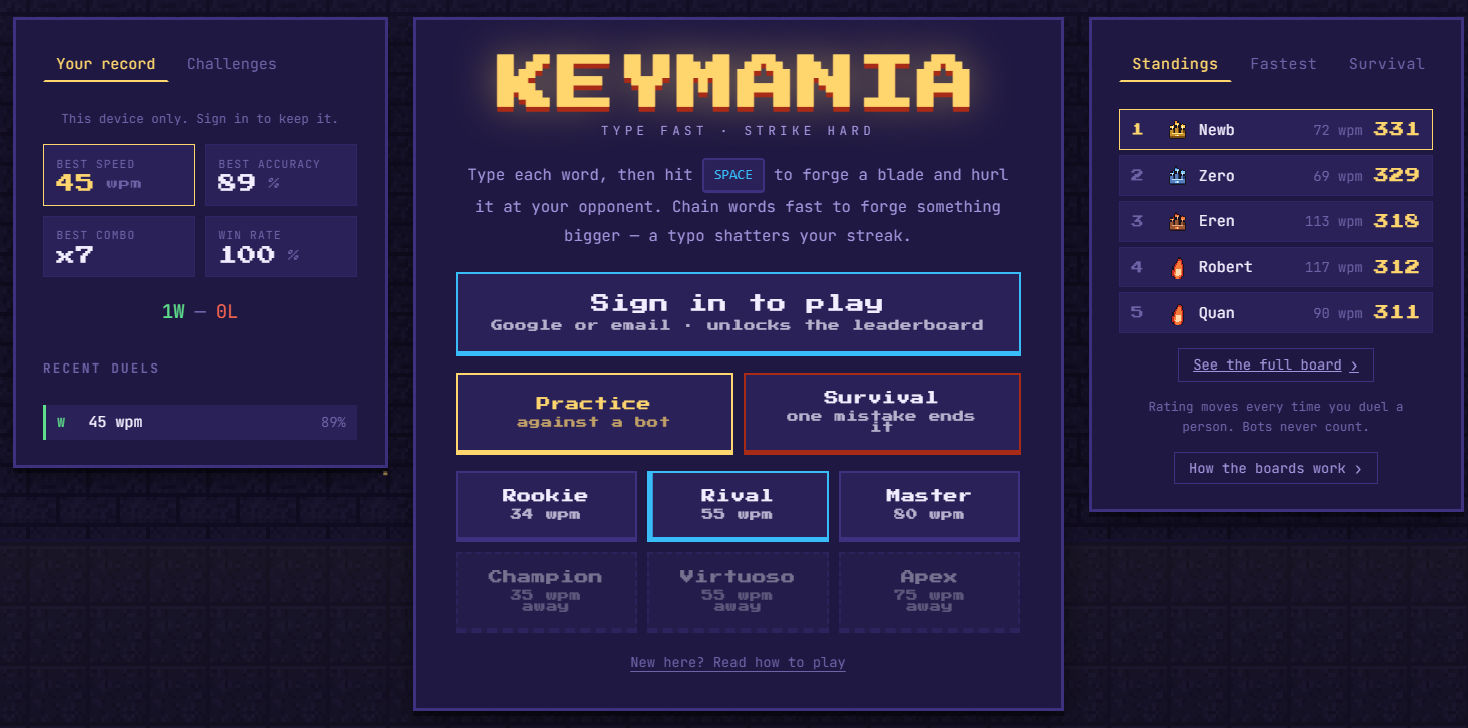
Additional (Added 31 July 2026). I just came across this really cool web app called keymania. No idea how long this will stay up but it is really cool: a typing test but you play against others. For every word you type correctly, you hurdle a blade towards your opponent. The faster you type without errors, the larger the blade (and I assume, the damage inflicted). Good times we're in.
Windows virtual desktops play a central role in my workflow. I typically keep four desktops open at all times across two screens: the Surface Book display and a larger monitor positioned above it.
The first desktop contains personal applications and communication tools. This is where Spotify, WhatsApp for Windows, email, and other personal items live.
These applications remain accessible without competing for attention while I'm working.
This is where most of my day is spent.
Visual Studio Code typically occupies the large monitor in full screen, while a browser window or OneNote stays visible on the secondary display. This desktop is dedicated to whatever task I'm actively working on at the moment.
The third desktop contains supporting applications such as HeidiSQL and other tools that I need occasionally but don't want to clutter my primary workspace.
They're available when needed but remain separated from my active work environment.
The fourth desktop is reserved for processes that don't require constant attention.
Whether it's compiling code, running PowerShell scripts, or performing backups, these tasks can run independently while I continue working elsewhere. I simply check on them occasionally when necessary.
Using virtual desktops heavily exposed an annoying limitation in Windows.
Suppose I launched an application on Desktop 3. If that application took a few seconds to load and I switched to another desktop while waiting, the application would sometimes open on whichever desktop I happened to be viewing when it finished loading.
To solve this, I created a small utility called DesktopTie. It ensures that applications open on the virtual desktop where they were launched, regardless of where I move afterward.
It's one of those tools that solves a very specific problem, but because I encounter that problem constantly, it saves me a surprising amount of frustration every day.
Another tool I built for myself is called NodeTie.
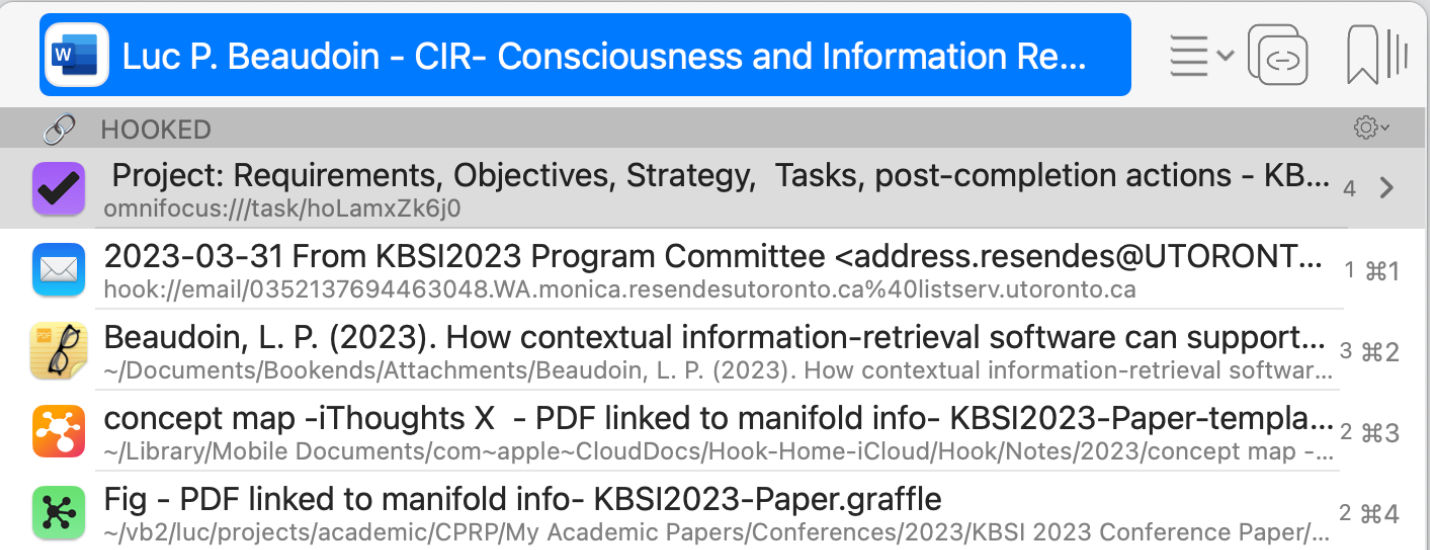
This is what hookmark for MAC looks like. It's a pretty good app, not trivial to make for mac, but completely not trivial to make on windows (and that is why, to this day, there is no windows alternative.
I often need to connect files, documents, notes, and URLs so that I can move between related resources quickly. NodeTie acts somewhat like a bookmarking system, but with a stronger focus on creating relationships between different types of information. In fact I made it to resemble in some of its functionality hookmark which is something that exists for Mac but has no equivalent in Windows.
The linked information can then be pasted into OneNote or Obsidian. In practice, it gives me a lightweight way to organize knowledge without forcing me into a complex workflow.
Like many personal productivity tools, it exists because I couldn't find an existing Windows application that worked exactly the way I wanted.
For time management, I keep things simple.
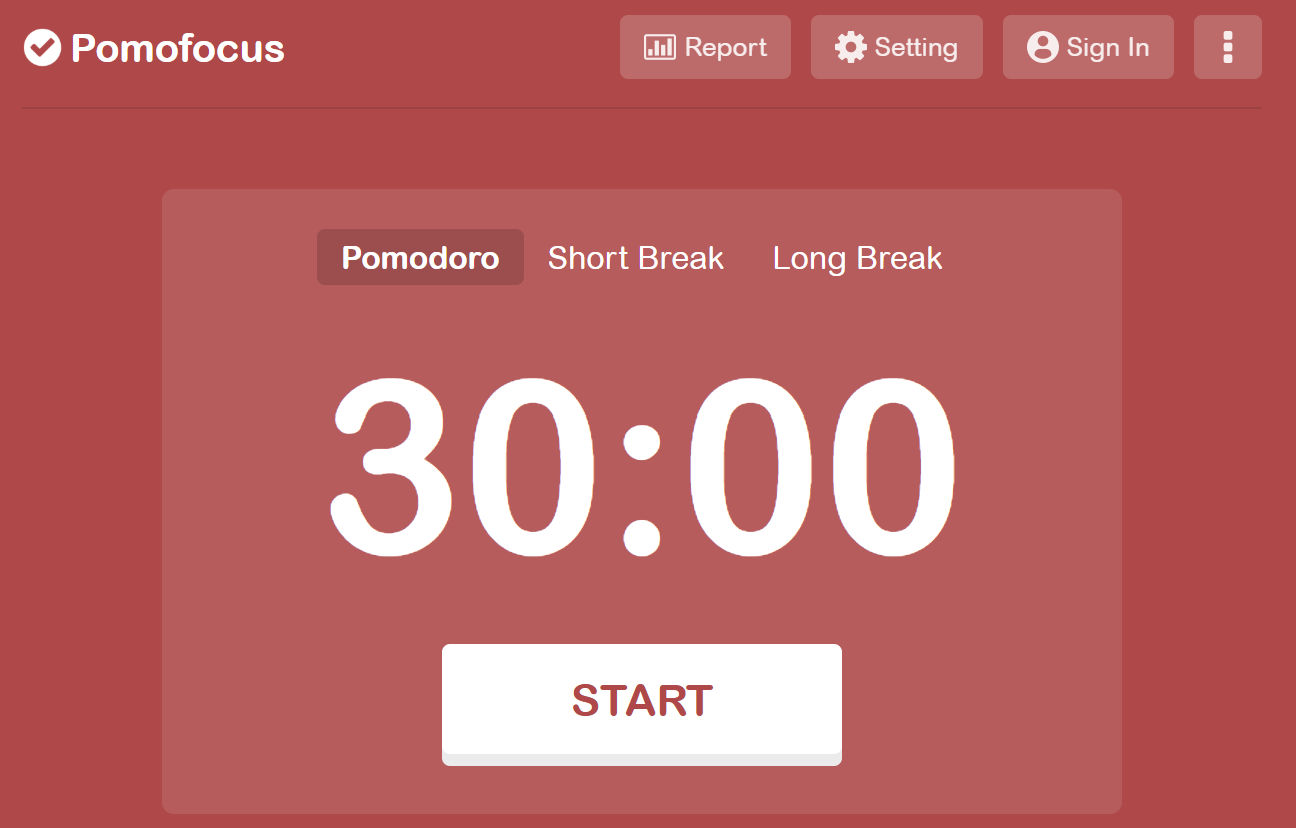
I use the Pomodoro timer available at pomofocus.io. It provides a straightforward cycle of work sessions and breaks:
I don't follow the timer religiously, but it creates a helpful rhythm throughout the day. It prevents long stretches of unfocused work and serves as a gentle reminder to step away from the screen occasionally.
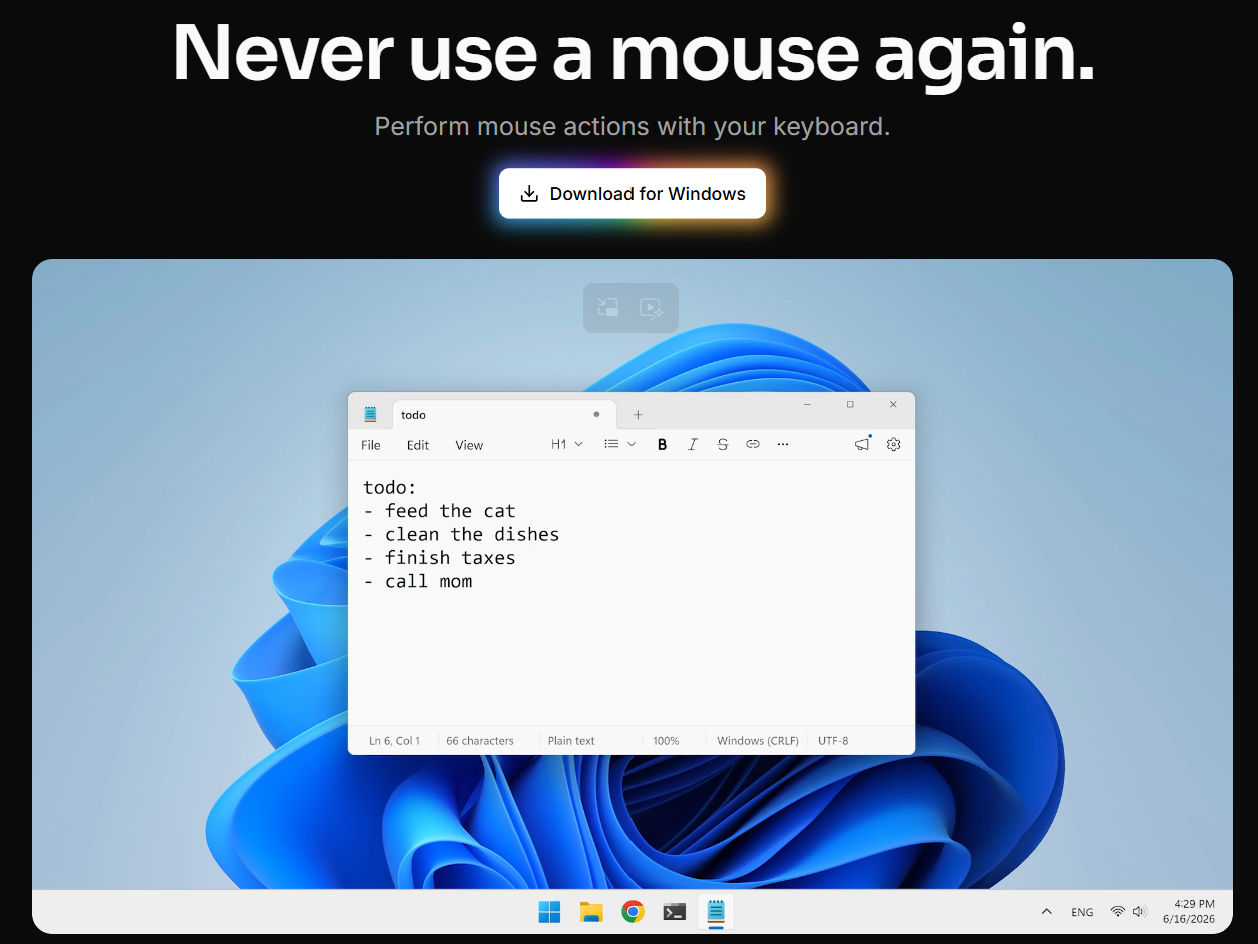
One application that had an unexpectedly large impact on my productivity is NeverClick.
The idea is simple: perform mouse actions through the keyboard. Left clicks, right clicks, double clicks, and other common actions can be triggered without reaching for the mouse. Once you become accustomed to keyboard-driven navigation, constantly switching between keyboard and mouse starts to feel inefficient. NeverClick helps eliminate much of that context switching and keeps my hands where they already are.
At this point, the mouse is primarily a backup tool rather than my primary way of interacting with Windows.
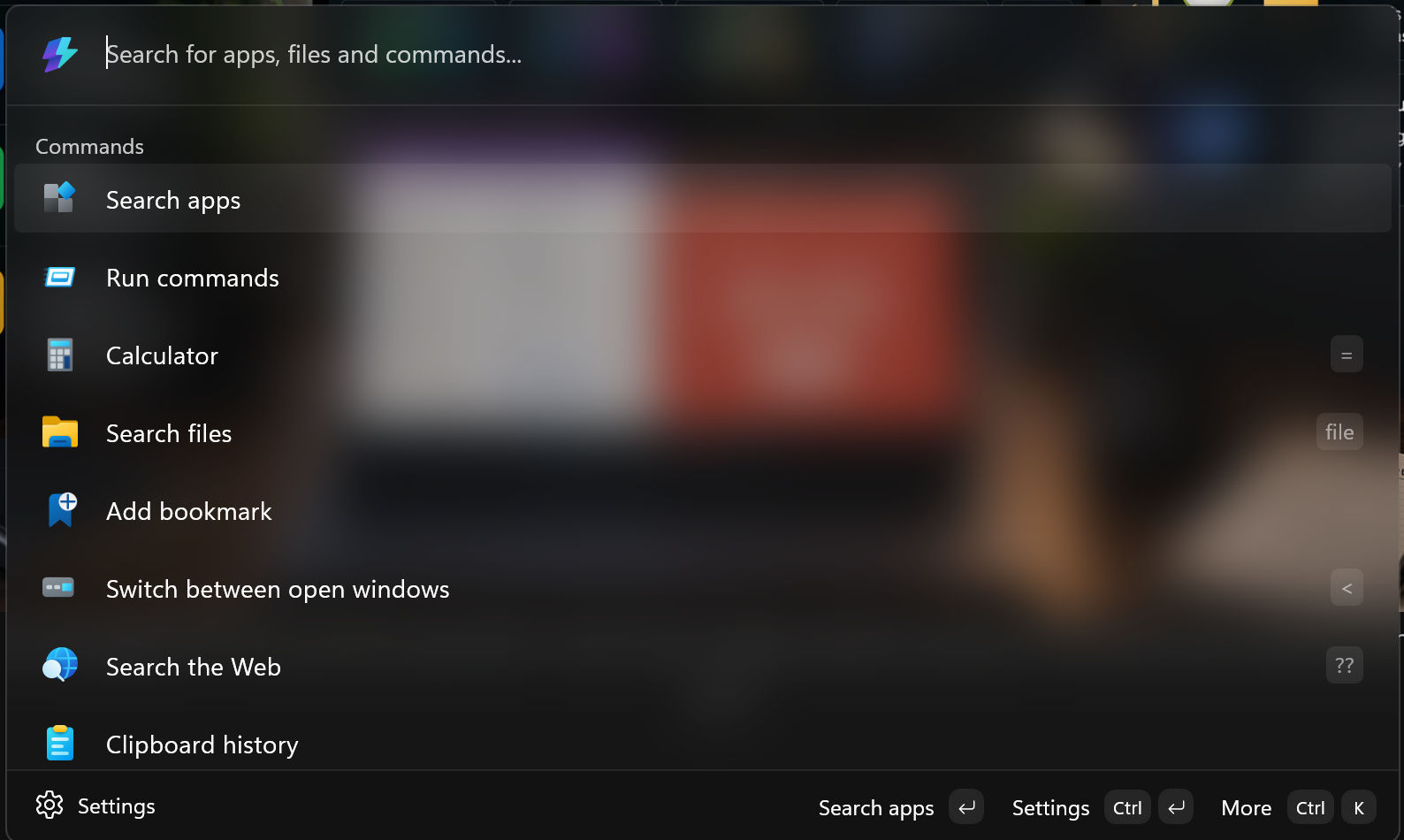
Something I forgot to mention on the first version of this article: I use the Power Toys command palette all the time that's the way that I open any application. I always use the command palette it's really, really useful and fast and, as such, highly recommended.
No productivity system is ever truly finished.
The biggest friction point in my workflow today is scrolling. While keyboard shortcuts work well inside focused windows, the experience becomes awkward when I want to scroll content in a window that doesn't currently have focus. In those situations, I still find myself reaching for the mouse wheel, which sucks.
I'm convinced there's a better solution, and eventually I'll find it. When I do, it will become another small optimization in an ongoing effort to move as much of my workflow as possible onto the keyboard.
Does anyone know anything that can be done for this or do I need to make my own??
Most of the gains came from eliminating friction: typing faster, organizing virtual desktops, reducing mouse usage, automating repetitive behavior, and building small tools to solve annoyances that Windows doesn't address out of the box. I found that it is not that much the tools you use but rather how you use them and the ones that I mentioned above are simply the ones that make sense to me.
Individually, none of these changes is dramatic. Together, they create a workflow that lets me spend less time managing the computer and more time getting actual work done. I'm always trying to improve the way that I work so there may be changes to what you have read above so I'll make sure I'll come back to it and update it whenever that happens or if it happens.